
Installation notes
Installation starts after the download: if you do not have the file yet, get it from the download page or the APK page first. The steps differ for Android and iPhone, so follow the part that matches your device.
Installing on Android
The Android app comes as a file named 1go.apk. Once it has downloaded, open it from the notification bar or from the Downloads folder in Files. Android then checks whether your browser may install apps. This is a one-time step: tap Settings, turn on Allow from this source, return and tap Install. After a few seconds the button changes to Open, and the 1GO Plus icon appears on your home screen.
If Google Play Protect shows a notice, tap More details, then Install anyway. The notice is standard for apps that are not installed from the Play Store. More detail on permissions and older phones is on the Android page.
Installing on iPhone and iPad
Apple devices do not use APK files. Instead, 1GO Plus becomes a Home Screen app through Safari. Open 1GO Plus in Safari, tap the Share button at the bottom of the screen, choose Add to Home Screen and confirm with Add. The new icon launches 1GO Plus in full screen, without the Safari address bar, and keeps you signed in.
Use Safari for this step — Chrome and in-app browsers on iPhone do not offer the Home Screen option.
If something goes wrong
Nothing happens after tapping the file
Open the Downloads folder in Files and tap 1go.apk there. If it is missing, the download was interrupted — download it again.
“There was a problem parsing the package”
The file is incomplete. Delete it and download again on Wi-Fi.
“App not installed”
Free up storage and remove any older copy from another source, then install again.
No Add to Home Screen on iPhone
You are in Chrome or an in-app browser. Open the page in Safari and try again.
The icon opens a blank screen
Check your internet connection; 1GO Plus loads its lobby online. Close and reopen the app.
When the link opens inside another app
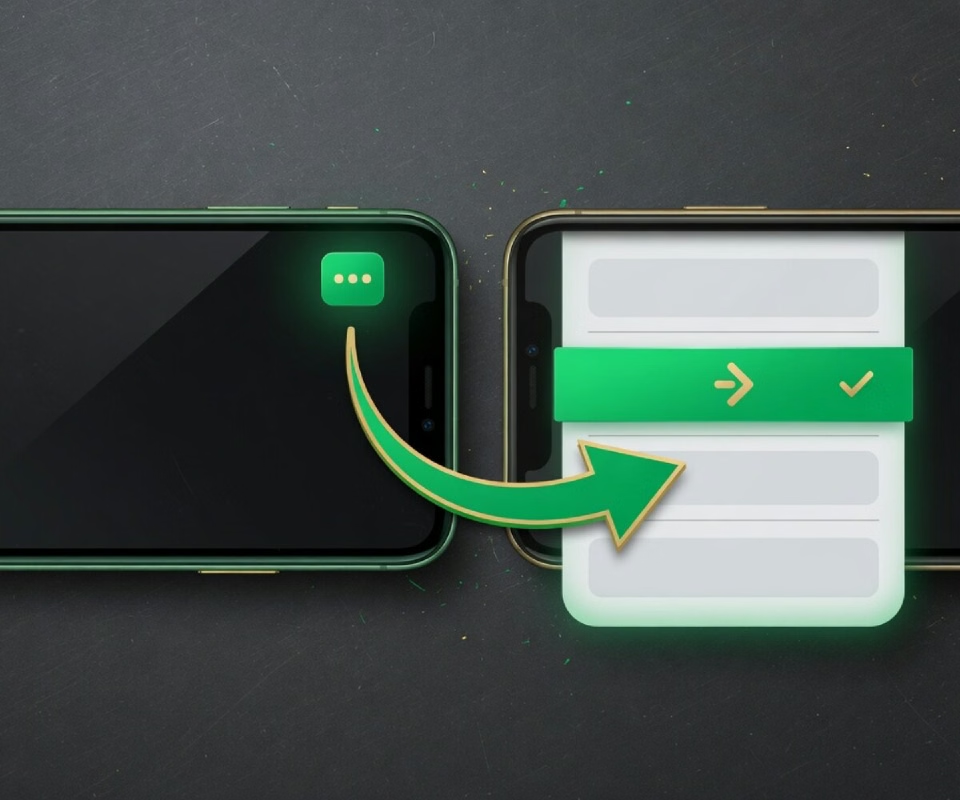
Links shared in Telegram, WhatsApp or Instagram open in the app’s own browser. That browser cannot download files or add Home Screen icons. Tap the three dots in the corner and choose Open in external browser; the page reopens in Chrome or Safari and the installation works normally.
Updating later
On Android, updates are installed the same way as the first time: download the newest 1go.apk from the download page and install it over the current app. You do not need to uninstall anything, and your account stays signed in. The iPhone Home Screen app always opens the latest version automatically.
First launch
Open the app and sign in with your +91 number and password, or request an OTP. New players can register on the same screen. Then add funds in rupees and pick a game — the app page shows what is waiting inside.